Rainbow Roadmap guide
How to highlight a PDF and take useful notes
Upload a PDF, select text, mark key passages and write your understanding. Keep page references so you can revisit the source.
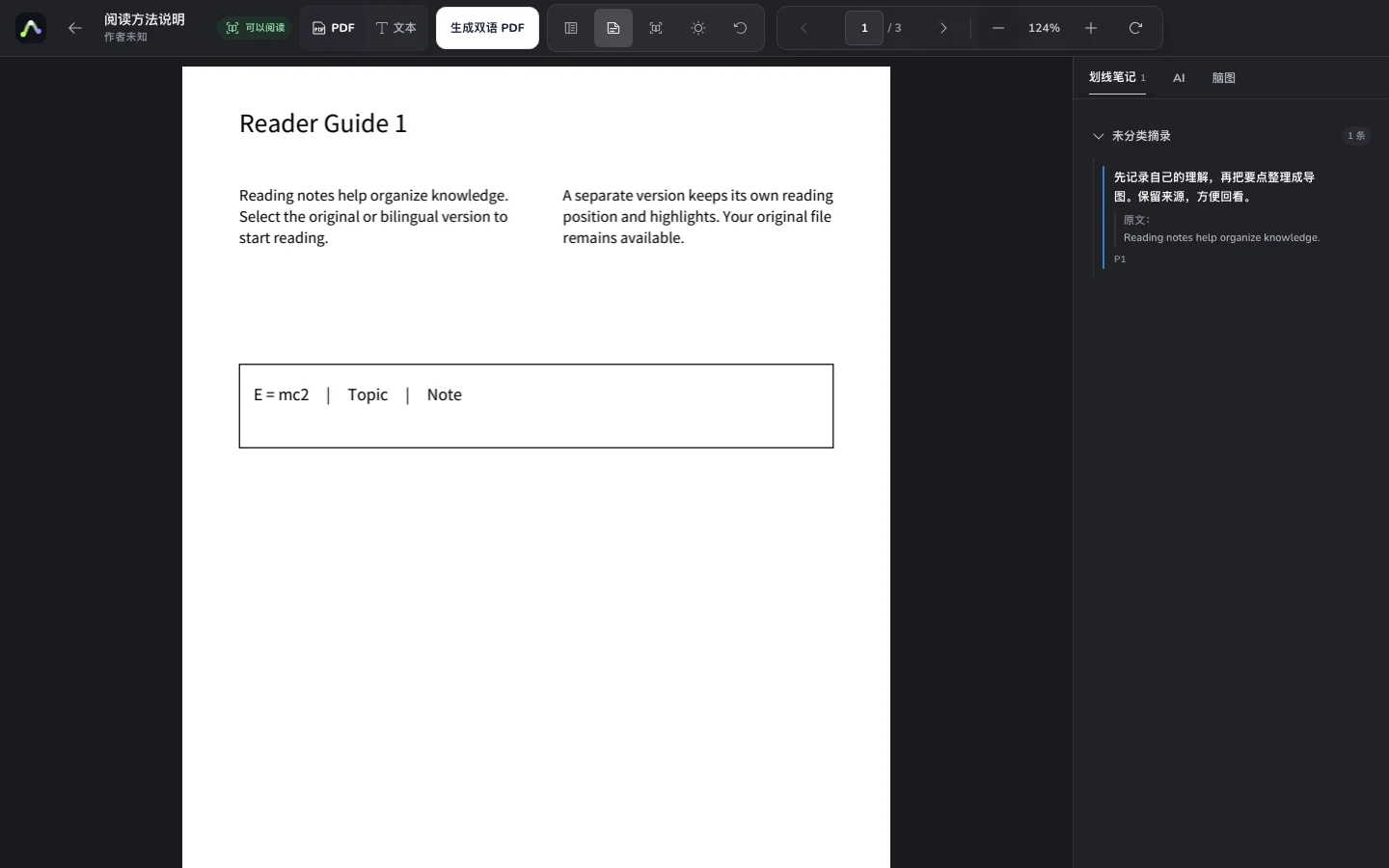
A useful note connects a passage to your own understanding. This example uses an original reading guide: mark one key idea, then explain why it matters.
Before you start
- Sign in and upload your PDF within the current account allowance.
- Wait for parsing before opening the reader.
- Use a PDF with extractable text; image-only scans may not support text selection.
01
Find the passage
Upload the PDF, wait for it to be ready and start reading. Use the contents, page number or reading position to find your passage.
PDF file page numbers may differ from printed page labels.
02
Select and mark text
Drag to select text and choose a highlight or underline in the selection tools. Set the color and style with the available controls.
If text cannot be selected, check whether the scan has a text layer.
03
Write your understanding
Open the note action for the selection, write a question, explanation or application and save. AI passage questions are a separate optional action.
Explain how the passage relates to your question rather than only copying it.
04
Revisit and review
Return to the source from your notes. Turn key passages into cloze exercises when you want to practice recall.
Keep the surrounding context and check it before making a knowledge card or map.
Try an example
A passage, a highlight and your understanding
Examples use an original reading guide. Open the workspace to work with your own files.
A useful note combines the source and your interpretation.
My note · P1
Keep the page reference, explain why the idea matters and revisit it during review.
Check your result
- The mark covers the intended words.
- The note includes your interpretation and a page reference.
- Notes are not automatically made public by sharing features.
Common questions
It depends on extractable text and parsing results. This tutorial does not promise OCR for every scanned page.
No. EPUB supports chapters and reflowable reading, with chapter citations in folder Q&A. PDF page annotations and cloze tools are not promised for EPUB.